Live Show: a live slideshow of your guests' photos, under your studio name
Live Show is PixelPace's live slideshow for weddings and events. Guests scan a QR code and share photos from their phone's browser, with no app to install, and their photos play on a screen at the venue with your studio's name and social profiles as part of the show. After the event, the same photos are waiting in your client's gallery.
 Guest photos
What is a live event photo slideshow?
A live event slideshow shows photos on a screen at the venue while the event is still happening. Live Show pairs it with QR code photo sharing, so those photos come from the guests: the candid moments they catch on their phones at the dance floor, the dinner tables and the photo booth.
For guests, it turns the wedding or event into live photo sharing and becomes part of the entertainment. Everyone watches for their own photo to appear. For you, it is something more useful than a slideshow, which is covered below.
Can guests share photos without installing an app?
Yes. A guest scans the event's QR code with their phone camera and the event opens in their browser. They choose to share their photos, enter their name so the photos are credited to them, and pick photos from their camera roll. That is the whole process.
- Photos taken on iPhone and Android phones both work.
- If the venue's connection drops, the photos wait on the phone and finish uploading once it's back.
- Guests can see what they have shared from that phone and remove their own photos.
- Guests who also want their own photos from you can register with a selfie in the same visit.
Guests never see a storage limit or a technical error about your account. If sharing is switched off or can no longer accept photos, they are simply told that uploads are closed for the event.
Setting up Live Show at the venue
Before the event
Guest photo sharing is available on every event. In the PixelPace desktop app, check that it is switched on for the event, then copy the event's slideshow link. Put the event's QR code where guests will see it: on table cards, at the entrance or at the bar.
On the day
Open the slideshow link in a browser on the computer connected to the venue's projector or TV, and switch it to full screen. The screen stays awake while the show runs. Until the first guest photo arrives, it shows a “waiting for the first photo” screen with the QR code, so the screen is asking for photos from the moment it is switched on. On a keyboard, the arrow keys move between photos, the space bar pauses and F toggles full screen.
What plays on screen
Your studio name sits in the corner of the screen, above the event name, for as long as the show runs. Photos play in short sets, and new arrivals lead the next set, so a guest who just shared a photo soon sees it on screen. Between sets, a title card shows your studio name, your Instagram and Facebook profiles if you have added them, and the QR code for the event.
Staying in control of what appears
A screen at a wedding is public, so Live Show is built to keep you in charge of it:
- New photos wait a short moment before they can reach the screen, and then join at the start of the next set.
- You can remove any guest photo from the desktop app. It leaves the gallery straight away and is gone from the slideshow when the next set begins.
- The slideshow link shows guest photos from that one event only. It never shows your own photos, other events or the client gallery.
- You can switch guest sharing off for an event whenever you like.
Your studio's name in front of every guest
A wedding can put you in a room with dozens or hundreds of people who may be planning a wedding, a birthday or a corporate event of their own. Normally they see you as the person with the camera. They may never learn your studio's name.
Live Show changes that. Your studio name stays on the venue screen for as long as Live Show runs, and every pause between sets puts your social profiles there too, while guests are watching for their own photos. It keeps your brand visible for the whole evening and gives guests an easy way to find you afterwards.
It won't book clients for you, and nothing can promise that. What it does is make the event a place where people learn your name, not only a place where you work.
After the event: guest photos in the gallery
Guest photos don't disappear when the screen goes dark. They are saved to the client gallery in a separate “Moments by Guests” section, clearly labelled so they are never mistaken for your work, where the couple can view and download them. You can see and download them in the desktop app as well.
Guests who register with a selfie also receive the photos of them from your shoot through private AI face recognition, so the event's photos reach the people in them without you sorting anything by hand.
A reception, with Live Show running
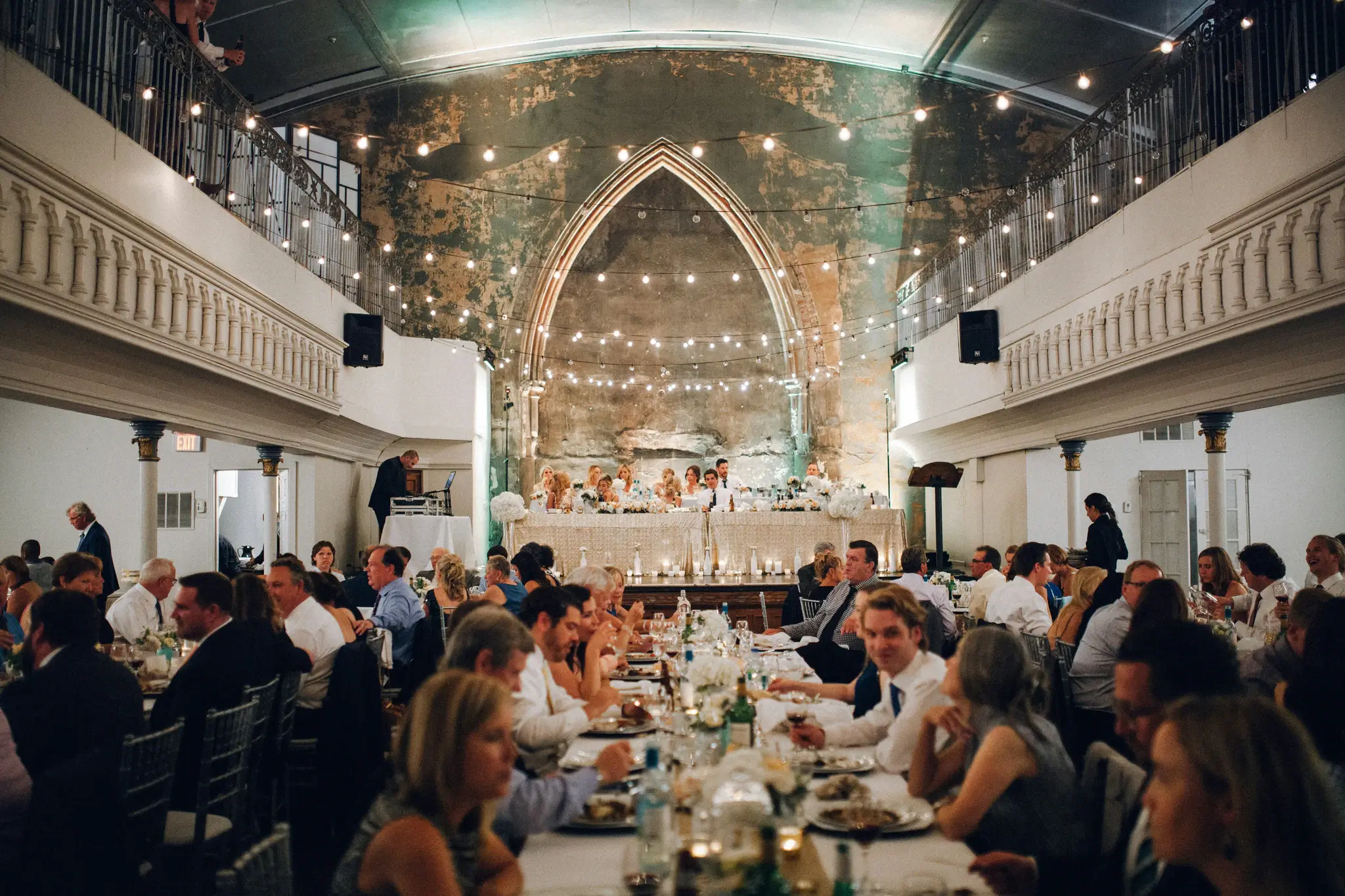
You place a small QR card on each table and connect a laptop to the venue's screen with the slideshow link open. As dinner starts, the first photos of friends at their tables appear. Between sets, your studio name and Instagram handle fill the screen next to the QR code, and more guests scan it.
A guest shares a photo that shouldn't be on a wall, and you remove it from the desktop app before the next set. The next morning, the couple opens their gallery and finds the guests' photos from the evening alongside your delivery.
Shooting events often? See how PixelPace fits wedding photographers and event photographers.
Frequently asked questions
Can wedding guests upload photos without installing an app?
Yes. Guests scan the event's QR code and share photos from their phone's browser. They only need to enter their name; there is no app, account or selfie required.
Can guests upload videos?
No. Live Show and guest sharing accept photos only.
Can I turn guest uploads off for an event?
Yes. Guest photo sharing is available on every event, and you can switch it off for any event from the PixelPace desktop app.
What if a guest uploads something inappropriate?
Remove it from the desktop app. It leaves the gallery straight away and is gone from the slideshow when the next set of photos starts. New photos also wait a short moment before they can reach the screen.
Do guest photos use my storage, and is there a per-guest fee?
Guest photos count toward your PixelPace storage plan. There is no per-guest or per-upload charge.
Are guest photos saved at full resolution?
Guest photos are saved at a high resolution for viewing and sharing rather than as the phone's full-size original, which keeps uploads quick on busy venue connections.
More of the PixelPace workflow
How PixelPace groups every person across a shoot, and why the face matching stays on your computer.
What your clients and guests see when you deliver: the cover, the events, favourites, downloads and privacy.
Why PixelPace handles whole shoots in a desktop app while clients and guests use a browser.
Bring Live Show to your next event
Guest photo sharing and Live Show are part of every PixelPace plan.